
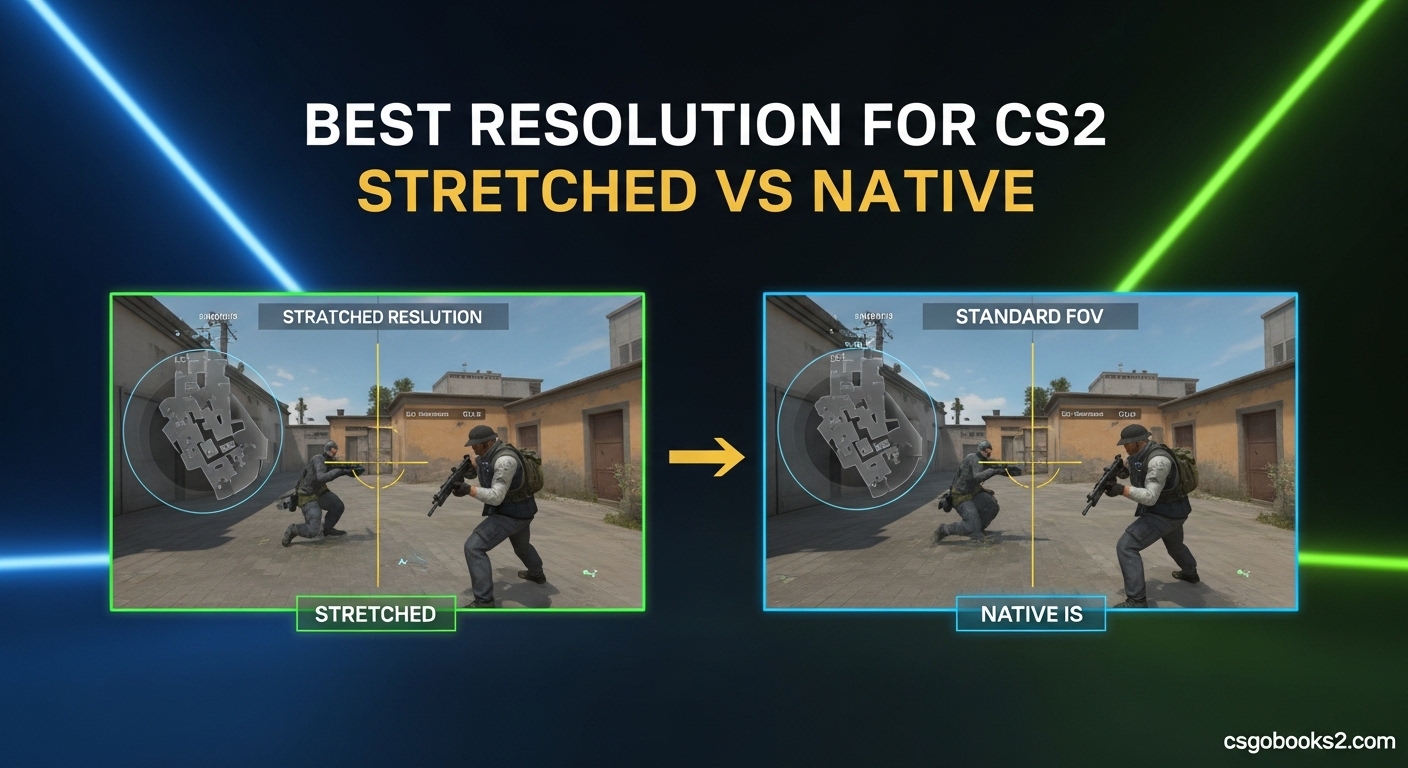
The debate between stretched and native resolution in Counter-Strike 2 has divided players for years. Finding the best resolution for CS2 stretched vs native settings can significantly impact your aim, awareness, and overall performance. After testing every major resolution option across different monitor sizes and playstyles, I’ll break down exactly what each option offers and help you make the right choice for your setup.
Resolution affects everything in CS2 from player model size to your field of view and even how your sensitivity feels. Whether you’re a competitive grinder climbing the ranks or a casual player enjoying matches with friends, choosing the right display settings gives you a measurable advantage. In this guide, I’ll cover native 16:9, stretched 4:3, and the middle-ground 16:10 options with real performance data and pro player preferences.
Understanding Resolution Types in CS2 (2026)
Before diving into specific resolutions, it’s important to understand what we’re actually comparing. Native resolution means your game renders at your monitor’s default pixel dimensions (typically 1920×1080 for modern displays). Stretched resolution renders at a narrower aspect ratio like 4:3 (1280×960) and scales horizontally to fill your widescreen monitor.
The aspect ratio is the key difference here. 16:9 is widescreen format, giving you maximum peripheral vision. 4:3 is the older square format, which when stretched makes player models appear wider and larger on screen. This stretching effect doesn’t change hitboxes, but it does change how targets appear to your eyes.
CS2’s Source 2 engine handles scaling differently than CS:GO, with some players reporting crisper visuals at native resolution compared to the previous game. Your graphics card also works harder at higher resolutions, which matters if you’re pushing for maximum FPS on older hardware.
Best Resolution for CS2 Stretched vs Native: Which Is Right for You?
Both stretched and native resolutions have legitimate advantages depending on your playstyle, monitor size, and what you prioritize in competitive play. Native resolution offers better visual clarity and wider field of view, while stretched resolution provides larger player models that some players find easier to track and hit.
The best resolution for CS2 stretched vs native ultimately comes down to personal preference after testing both options. Many players have spent years building muscle memory with one aspect ratio, making switching uncomfortable regardless of theoretical advantages. Let’s examine each option in detail.
1920×1080 (16:9) Native Resolution
Native 1920×1080 resolution displays CS2 exactly as intended by Valve’s developers. Your field of view maximizes at 90 degrees horizontally, giving you the widest possible view of angles and enemy positions. Graphics appear crisp and detailed, making it easier to spot enemies at distance or in dark corners.
The competitive advantage of native resolution is situational awareness. You’ll see approximately 30% more of the game world horizontally compared to 4:3 stretched. This wider view helps with holding wide angles, checking corners systematically, and spotting flankers in your peripheral vision.
Native resolution also preserves the intended visual experience. Player models maintain their correct proportions, crosshairs remain perfectly round, and text and UI elements appear sharp. For players who value visual fidelity or play on larger monitors (27 inches and up), native resolution provides the most comfortable viewing experience.
The main disadvantage is smaller player models. Enemies appear narrower at native resolution, which some players feel makes precise headshots slightly more difficult. However, this is largely psychological since hitboxes remain unchanged regardless of display settings.
Native 16:9 is best for:
- Casual players prioritizing visual quality
- Players on larger monitors (27″+)
- Those with lower-end PCs needing optimal performance
- Players who value peripheral vision and map awareness
- New players without established muscle memory
1280×960 (4:3) Stretched Resolution
Stretched 4:3 resolution, particularly 1280×960, dominates the competitive CS2 scene with approximately 80% of professional players using some form of 4:3 aspect ratio. When stretched to fill a 16:9 monitor, everything appears wider including player models, weapons, and your crosshair.
The primary benefit of stretched resolution is larger target acquisition. Enemies appear noticeably wider on screen, which many players feel makes tracking and hitting targets easier especially during spray transfers and quick flicks. This effect is purely visual but can genuinely improve aim confidence for many players.
Stretched resolution also creates a hyper-focused viewing experience. The narrower field of view concentrates your attention on the center of the screen where most action occurs, reducing visual distractions from peripheral elements. Some players report this helps maintain focus during intense clutch situations.
Many CS:GO veterans prefer 4:3 stretched simply due to years of muscle memory developed playing at this aspect ratio. Switching to native after thousands of hours on stretched can feel disorienting regardless of objective advantages.
The downsides include blurry visuals from horizontal scaling, loss of peripheral vision (approximately 25-30% less horizontal FOV), and potential difficulty spotting enemies at wide angles. The stretched effect also makes everything appear somewhat distorted, which some players find uncomfortable during extended sessions.
Stretched 4:3 is best for:
- Competitive players prioritizing aim over awareness
- Entry fraggers and aggressive players
- CS:GO veterans with established 4:3 muscle memory
- Players on smaller monitors (24″ and below)
- Those who struggle with tracking targets at native resolution
16:10 Resolution – The Middle Ground
The 16:10 aspect ratio offers a compromise between native 16:9 and stretched 4:3, with popular resolutions including 1600×1024 and 1280×1024. This option provides moderately wider player models than native while preserving more horizontal field of view than 4:3.
Professional players like EliGE have utilized 16:10 resolutions successfully at the highest level, demonstrating that this middle ground can compete with both extremes. The 16:10 aspect ratio provides approximately 15% larger player models compared to 16:9, while maintaining roughly 15% more horizontal FOV compared to 4:3 stretched.
This balanced approach appeals to players who want some benefits of both options without committing fully to either extreme. You’ll gain slightly larger targets compared to native resolution without sacrificing as much peripheral vision as 4:3 stretched requires.
The main drawback of 16:10 is that it doesn’t excel at either extreme. You won’t get maximum model size like 4:3 or maximum FOV like 16:9. However, for players who find both options extreme in different ways, 16:10 provides a comfortable middle path that can optimize both aim and awareness simultaneously.
16:10 is best for:
- Players finding both 16:9 and 4:3 too extreme
- Those wanting balanced aim and awareness improvements
- Players on medium-sized monitors (24-27 inches)
- Riflers and support players needing versatility
Pro Player Resolution Preferences
Current CS2 professional statistics show approximately 80% of pros use 4:3 aspect ratio, with 1280×960 stretched being the single most popular choice. This overwhelming preference stems from decades of competitive Counter-Strike history where 4:3 dominated the scene.
Notable exceptions exist at the highest level. Ropz famously competes on native 16:9, proving that traditional resolution choices aren’t mandatory for success. EliGE has utilized 16:10 resolutions for much of his career, demonstrating that alternative aspect ratios can compete at the top level.
The pro scene’s preference for 4:3 stretched creates a powerful network effect. Rising players imitate their idols’ settings, teams standardize around aspect ratios for consistency, and coaching staff teach what they know from years of experience. However, correlation doesn’t equal causation—these players would likely be elite regardless of resolution choice.
What matters most is that pros commit to their chosen resolution and build thousands of hours of muscle memory. The consistency of their choice matters more than the specific resolution itself.
Sensitivity Adjustment When Switching Resolutions
One critical aspect rarely discussed is how switching between stretched and native resolution affects your perceived sensitivity. When you switch from native to stretched, your horizontal sensitivity effectively increases because the same mouse movement covers more screen distance due to the stretching effect.
This means your muscle memory built at 4:3 stretched won’t transfer directly to native 16:9. The same physical mouse movement that rotated your view 180 degrees at stretched might only achieve 150 degrees at native, requiring significant adjustment period.
For players switching resolutions, I recommend converting your eDPI (mouse DPI times in-game sensitivity) to maintain the same perceived feel. A rough conversion guide: multiply your 4:3 stretched sensitivity by 0.75 when switching to 16:9 native, or multiply your native sensitivity by 1.33 when switching to 4:3 stretched.
The best approach is testing your new sensitivity in an aim training map or deathmatch server immediately after switching. Spend at least 30 minutes adjusting before judging whether the new resolution works for you—your brain needs time to adapt to both the visual changes and the different sensitivity feel.
How to Change Resolution in CS2?
Changing your resolution in CS2 is straightforward through the in-game settings menu. Navigate to Settings > Video > Display Mode and select either Fullscreen or Fullscreen Windowed. Then adjust the Resolution dropdown to your desired option.
For stretched resolution specifically, you’ll need to select a 4:3 resolution like 1280×960, then adjust your monitor’s display settings or GPU control panel to scale the image while maintaining aspect ratio. Most modern monitors handle this automatically when detecting a 4:3 input signal.
Advanced players can add launch options to force specific resolutions. Right-click CS2 in Steam, select Properties, and add “-w 1280 -h 960 -freq 240” (adjusting for your desired resolution and refresh rate) to the launch options. This ensures CS2 always launches at your preferred settings.
You can also set resolution through your autoexec config file using the commands “mat_setvideomode 1280 960 1” for 4:3 stretched or “mat_setvideomode 1920 1080 1” for native 16:9. Verify your changes by checking the current resolution displayed in the video settings menu.
Which Resolution Should You Choose?
The best resolution for CS2 stretched vs native depends on several factors specific to your situation. Consider your monitor size, playstyle, experience level, and what matters most for your improvement.
Choose native 16:9 if you play on a 27-inch or larger monitor, prioritize visual clarity and map awareness, or are new to CS2 without established muscle memory. The wider field of view provides tactical advantages that become more significant at higher ranks where map knowledge and positioning matter more than raw aim.
Choose stretched 4:3 if you play on smaller monitors, prioritize aim and target acquisition, or have years of CS:GO experience with 4:3. The larger player models can genuinely improve aim confidence for many players, especially in entry fragging roles where quick tracking and spray transfers are essential.
Choose 16:10 if you find both extremes uncomfortable, want balanced improvements to both aim and awareness, or play on medium-sized monitors where neither option feels ideal. This middle path provides moderate benefits without the drawbacks of either extreme.
Regardless of which resolution you choose, commit to it for at least 2-3 weeks before judging its effectiveness. Building muscle memory takes time, and constantly switching between resolutions will only hinder your progress. Pick one, optimize your settings around it, and focus on improvement rather than second-guessing your choice.
FAQs
Should I play stretched or native CS2?
Choose stretched if you prioritize larger player models and have smaller monitors. Choose native if you want better visuals, wider field of view, or play on larger displays. Most importantly, test both options yourself—what works for pros might not work for you.
What is the best resolution for CS2 stretched?
1280×960 4:3 stretched is the most popular choice among professionals, offering significantly larger player models while maintaining decent vertical clarity. Alternatives include 1280×1024 4:3 stretched and 1440×1080 for slightly different visual characteristics.
Why do pros use 4:3 CS2?
Approximately 80% of professional players use 4:3 stretched due to decades of competitive history, larger player models for easier target acquisition, and established muscle memory from thousands of hours. However, many pros succeed on native 16:9 (like ropz), proving both options work at the highest level.
How to play 1280×1024 stretched CS2?
Set your in-game resolution to 1280×1024 in Settings > Video, then configure your monitor or GPU control panel to scale the image with aspect ratio preservation. Add launch options ‘-w 1280 -h 1024’ to force this resolution on startup. Note that 1280×1024 is 5:4 aspect ratio, not pure 4:3, creating slightly different stretching characteristics.
Conclusion
The best resolution for CS2 stretched vs native depends entirely on your personal preferences, monitor size, and playstyle. Native 16:9 offers superior visual clarity and wider field of view, while stretched 4:3 provides larger player models that many players find easier to hit. The middle-ground 16:10 aspect ratio offers balanced benefits for players who find both extremes uncomfortable.
Don’t let pro player preferences dictate your choice. What matters most is choosing one resolution and committing to it long enough to build genuine muscle memory. Test each option for at least a week in real matches before making your decision. Your consistency and confidence with your chosen settings matters far more than the specific resolution itself.